Firebird database configuration
Overview
OGS Firebird database usage
The Firebird database server is used by OGS to store configuration and result data. Typically, there are two databases involved:
-
Station database. This is typically used on the station as follows:
- Monitor.exe: The OGS runtime reads the workflow configuration and writes the result data (part results)
- heOpImp.exe: The OGS project import utility writes updated configuration into the station database
-
Configuration database. This is used to store the workflow configuration data. This is typically used as follows:
- heOpCfg.exe: The OGS workflow editor reads from and writes to the database. The database can be local or remote, for a remote database, heOpCfg uses two application roles to access the data ("editor" and "admin")
- heOpImp.exe: The OGS project import utility reads from this database.
The station database usually is hosted on the station PC and does not need access from the outside ("local server"). The location of the configuration database might be local or remote, so the "remote server" needs network access.
Authentication, Authorization and Communication
The firebird server uses plugins for authentication, authorízation and over the wire encryption (see Firebird Configuration Reference - Server and Firebird Language Reference - Security). Note, that most of these settings can be defined globally or on the database level.
For authentication, the following options are available by default (fbclient.conf parameter AuthServer) - similar to Microsoft SQL server these can be enabled and disabled:
- srp (secure remote password): username/password authentication over encrypted communication channel
- win_sspi: active directory based authentication
The communication between Client ans Server is also managed by plugins. By default the folloing are available (fbclient.conf parameter WireCryptPlugin): ChaCha, ChaCha64, both using SHA265 hashed session keys. Also Arc4 is available, but considered insecure and should be disabled.
Authorization defines, which rights a user gets when accessing the database server, a database and the objects inside the database. In Firebird, these rights are defined for the actual user and by the role a user has. Rights for database objects can be granted accordingly.
Special cases are:
- SYSDBA user: is a "superuser", which has all access rights in all databases
- PUBLIC user: default user without any rights. Can be used for role mapping and active directory mapping though.
- database owner: the user generating a database automatically gets the RDB$ADMIN role for this database (i.e. the admin rights).
- database user: his rights are defined by roles and rights granted explicitely.
Note, that all rights assignment operate on "database" users and roles. For active directory users connecting through win_sspi (trusted authentication), usually a mapping based on active directory groups is used to map Windows users/groups to database users.
Firewall
The Firebird database server by default listens on TCP/3050 for client requests. The server can be configured (in firebird.conf) for different ports or listening only on specific interfaces.
The servers firewall and infrastructure firewalls should be configured accordingly.
Setting the Firebird server up for Window authentication
OGS connection roles
Generally the the different connection roles are used by the OGS applications:
| role | application | database | comment |
|---|---|---|---|
| heOpCfg_editor | heOpCfg | config | Edit workflows |
| heOpImp_reader | heOpImp | config | Read workflows |
| heOpImp_writer | heOpImp | station | Update workflows |
| heOpMon_user | heOpMon | station | Read workflows, write station results |
Note
Please note, that you might need additional roles and rights for your scenario, e. g. to upgrade the database schema - so usually you will also have an "admin" role with full rights (or give the heOpImp_writer and the heOpCfg_editor the DDL permission, see below for the DDL permission information in step 2)!
Note
In certain scenarios, the heOpMon_user also needs (partial) read
rights for config database (e.g. check, if config has (remote) changes). Adjust roles and permissions as needed by your scenario!
Step 1: Setup Windows Active Directory mapping for Administrators
During the installation, the SYSDBA account is created in the security database and the authentication is set to Srp265. So basically this must be changed to win_sspi to disable password based authentication. However, as no mapping is defined by default, only switching the authentication would lockout any access, so first the Windows administrative mapping should be set. This will map any member of the local Windows Administrators group to the RDB$Admin group, effectively allowing full database access.
:: Run in a windows command prompt on the server to enable "auto admin mapping".
:: Use the SYSDBA password you defined while installing the server
:: Connect to the by default installed employee.fdb to get server access.
> isql -u SYSDBA -p [password] 127.0.0.1:employee.fdb
Database: employee.fdb, User: SYSDBA
SQL> CREATE GLOBAL MAPPING WIN_ADMINS_ROLE USING PLUGIN WIN_SSPI
  FROM Predefined_Group DOMAIN_ANY_RID_ADMINS
  TO ROLE RDB$ADMIN;
SQL> CREATE GLOBAL MAPPING WIN_ADMINS_TOSYSDBA USING PLUGIN WIN_SSPI
  FROM Predefined_Group DOMAIN_ANY_RID_ADMINS
  TO USER SYSDBA;
SQL> exit;
Alternatively run the following:
Now exit isql and try to login using trusted authentication:
> isql -tr 127.0.0.1:employee.fdb
Database: employee.fdb, User: <domain>\<username>
SQL> SHOW MAPPING;
*** Global mapping ***
AutoAdminImplementationMapping USING PLUGIN Win_Sspi FROM Predefined_Group 'DOMAIN_ANY_RID_ADMINS' TO ROLE RDB$ADMIN
SQL> exit;
Tip: If trusted authentication does not work, make sure the
Win_Sspiauthentication plugin is enabled infirebird.conf.
Check the following settings:
If Win_Sspi is not listed, add it and restart the Firebird service for the changes to take effect.
Note
Even though Windows Administrators now have full access to the databases, this does not mean there is a mapping for the database objects. E.g. select * from <table> in employee.fdb will fail, as there the admin user does not exist as a user and therefore does not have select rights on the <table>. To modify, add the user or map to a user.
Step 2: Define users and mappings
Generally, OGS only uses two different rights for its purposes: one for reading from a database, one for writing to a database. To keep things simple, two roles are created and these are mapped from the win_sspi according to the active directory group. A second mapping is done to the PUBLIC user, which is already available in each database:
- db_role_reader: read access to the database.
- db_role_writer: this user is given a default database role db_role_writer with read/write access to the database.
- db_role_monitor: special role, with read access to the workflow configuration and write access to the result tables.
:: Create the two users (globally)
> gsec -user SYSDBA -password masterkey -add db_reader -pw isnotusedanyway
> gsec -user SYSDBA -password masterkey -add db_writer -pw isnotusedanyway

:: connect to the database to create roles and grants
> isql 127.0.0.1:<datbase> -user SYSDBA -password <password>
SQL> create ROLE db_role_reader set SYSTEM PRIVILEGES TO SELECT_ANY_OBJECT_IN_DATABASE, ACCESS_ANY_OBJECT_IN_DATABASE;
SQL> create ROLE db_role_writer set SYSTEM PRIVILEGES TO SELECT_ANY_OBJECT_IN_DATABASE, ACCESS_ANY_OBJECT_IN_DATABASE, MODIFY_ANY_OBJECT_IN_DATABASE;
SQL> create ROLE db_role_monitor set SYSTEM PRIVILEGES TO SELECT_ANY_OBJECT_IN_DATABASE, ACCESS_ANY_OBJECT_IN_DATABASE;

# map the windows groups - note: must be done for each database!
# note: map all external users to public + given role

# ---- for config database ----
# heOpImp is reader here
create mapping heOpImp_reader_user using plugin win_sspi from group "QUALITYR\heOpImp_reader" to USER public;
create mapping heOpImp_reader_role using plugin win_sspi from group "QUALITYR\heOpImp_reader" to ROLE db_role_reader;
# heOpCfg is writer here
create mapping heOpCfg_writer_user using plugin win_sspi from group "QUALITYR\heOpCfg_editor" to USER public;
create mapping heOpCfg_writer_role using plugin win_sspi from group "QUALITYR\heOpCfg_editor" to ROLE db_role_writer;


# ---- for station database ----
# heOpImp is writer here
create mapping heOpImp_writer_user using plugin win_sspi from group "QUALITYR\heOpImp_writer" to USER public;
create mapping heOpImp_writer_role using plugin win_sspi from group "QUALITYR\heOpImp_writer" to ROLE db_role_writer;
# heOpMon is the special monitor role
create mapping heOpCfg_monitor_user using plugin win_sspi from group "QUALITYR\heOpMon_user" to USER public;
create mapping heOpCfg_monitor_role using plugin win_sspi from group "QUALITYR\heOpMon_user" to ROLE db_role_monitor;
Role permissions for schema updates
Please note, that by default, only administrators can update the database metadata. As the heOpImp and heOpCfg applications can also update the database schema (e.g. if an update was rolled out). In this case, either an administrative user must run the applications or the heOpImp_writer and heOpCfg_editor needs explicitely granted permissions as follows:
-- Allow DDL metadata changes for the role "db_role_writer":
GRANT ALL PROCEDURE TO ROLE db_role_writer;
GRANT ALL FUNCTION TO ROLE db_role_writer;
GRANT ALL GENERATOR TO ROLE db_role_writer;
GRANT ALL SEQUENCE TO ROLE db_role_writer;
GRANT ALL TABLE TO ROLE db_role_writer;
For more details, see Firebird3DDLPrivileges.
Use the following queries to verify that role mappings have been configured correctly.
Check existing roles and their system privileges:
Check authentication mappings (e.g., Windows group → database role):
SELECT
  TRIM(RDB$MAP_NAME) AS MAPPING_NAME,
  TRIM(RDB$MAP_FROM) AS WINDOWS_GROUP,
  TRIM(RDB$MAP_TO) AS TARGET_ROLE
FROM RDB$AUTH_MAPPING;
🎬 Test login!
Try running a command shell using the Windows logon for any user which is a member of the "QUALITYR\heOpCfg_editor" group.
> runas /noprofile /user:ogs_editor cmd.exe
This will open a new command window with the given users login token and groups (you can check by running whoami /groups). Now execute isql as follows to see the effective user and role:
[ogs_editor]> isql -tr <dbhost>:<dbname>
The expected output is:
C:\Program Files\Firebird\Firebird_4_0>isql -tr 127.0.0.1:test01
Database: 127.0.0.1:test01, User: PUBLIC, Role: DB_ROLE_WRITER
SQL>
To test, if the user can access the schema objects, run (in isql) a query:
SQL> select part from part;
The expected output is:
SQL> select part from part;

            PART
    ============
            59
            60
            ...
SQL>
Demo output varies. Your user mappings might differ from what's shown here.
Step 3: Grant granular permissions to special roles
If more granular priviledges are needed (other than the SYSTEM PRIVILEGES), then explicit grants can be used (e.g. for the db_role_monitor role). To do so, run the following in isql (see Language Reference - Statements for Granting Privileges):
SQL> GRANT ALL ON TABLE xxx TO ROLE db_role_monitor;
This is usually needed for the db_role_monitor, as the windows user running OGS might not be allowed to wirte to all database objects 8e.g. only to the result schema, not to the workflow definitions). Do this for all tables of the station database (station.fds) result schema:
total, archpart, transaktion, nutzer, limit, archaktion, archdesign, result, tool_position, station_runtime
🎬 Copy & paste code
GRANT ALL ON TABLE total TO ROLE db_role_monitor;
GRANT ALL ON TABLE archpart TO ROLE db_role_monitor;
GRANT ALL ON TABLE transaktion TO ROLE db_role_monitor;
GRANT ALL ON TABLE nutzer TO ROLE db_role_monitor;
GRANT ALL ON TABLE limit TO ROLE db_role_monitor;
GRANT ALL ON TABLE archaktion TO ROLE db_role_monitor;
GRANT ALL ON TABLE archdesign TO ROLE db_role_monitor;
GRANT ALL ON TABLE result TO ROLE db_role_monitor;
GRANT ALL ON TABLE tool_position TO ROLE db_role_monitor;
GRANT ALL ON TABLE station_runtime TO ROLE db_role_monitor;
Step 4: Change server configuration to only allow trusted authentication
Till now, it was convenient to use the SYSDBA user to easily modify gloabl and database parameters. To switch to production mode, disable srp authentication and switch to trusted authentication. So the authentication settings can be changed in firebird.conf (also set the recommended security options):
# Change the following settings

DatabaseAccess = None
AuthServer = Win_Sspi
WireCrypt = Required
WireCryptPlugin = ChaCha64, ChaCha
As now also database access is limited to aliased databases, all databases which shall be accessed must be added to database.conf (and disable employee.fdb).
Note
Follow the same guidelines for the "local" server (see local firebird server configuration). Note, that for the local server, the most important settings are service account and file system security. As the database is a simple data file, there is no need to setup complex active directory authentication for database access.
OGS settings
To make the OGS applications work with trusted authentication, they must be configured accordingly. See the following sections on how to do so.
Note
Please note, that OGS application user authentication is not covered here, please see OGS active directory user authentication for more details.
heOpMon (OGS station runtime)
By default, heOpMon loads the station.fds database from its project folder. To enforce aliased database access and trusted authentication, change the following in your projects station.ini:
[GENERAL]

; Set the DBHost parameter to the database alias connection string
; in the format <hostname>:<aliasname>, typically you will want to
; use 127.0.0.1 for the <hostname> (and likely station for the alias)
DBHost=127.0.0.1:station

; Define database connection parameters (semikolon seperated list of
; <key>=<value> pairs). If a non-empty string is set, this overrides
; all default parameters.
; To use trusted authentication, set the user_name parameter to
; an empty string.
DBParams=user_name=
The relevant parameters in the [GENERAL] section are:
- DBHost (string): Database connection path (
: or : ). If not defined, uses station.fdsfrom the current project folder. - DBParam (string): Semikolon seperated list of
<key>=<value>pairs. If a non-empty string is set, this overrides all default parameters. To use trusted authentication, set theuser_name=parameter to an empty string.
heOpCfg (OGS workflow editor)
Use the trusted authentication version of the heOpCfg editor to work with (remote) configuration databases set up for trusted authentication.
Note, that you must define connection aliases in heOpCfg.ini for the databases you want to access:
[GLOBAL]
; Define the remote configuration databases used:
CFG_DATABASE_01=<hostname>:<db-alias1>
CFG_DATABASE_02=<hostname>:<db-alias2>
; ...
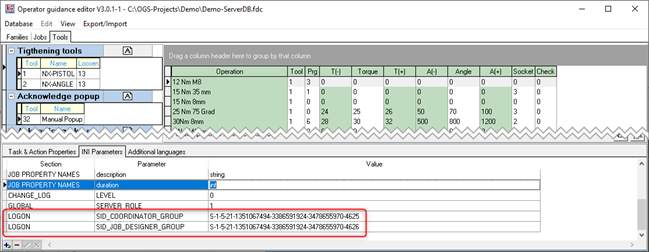
- SID_COORDINATOR_GROUP: Specifies the group SID used to determine whether an Active Directory user is authorized for the “Coordinator” role in DBEdit.
- SID_JOB_DESIGNER_GROUP: Specifies the group SID used to determine whether an Active Directory user is authorized for the “Job Designer” role in DBEdit.
- SID_CFG_EXPORT_GROUP: Specifies the group SID used to determine whether an Active Directory user is allowed to export a database.
When the heOpCfg editor starts, it checks the current Windows logon for membership in the configured groups. Access to Coordinator and Job Editor modes is then granted based on the corresponding group memberships.
heOpImp (OGS station workflow import)
Use the trusted authentication version of the heOpCfg editor to work with (remote) configuration databases set up for trusted authentication.
To also work with trusted station databases, change the heOpImp.ini configuration file as shown in the following code block. Note, that you also must define connection aliases for the configuration databases in heOpCfg.ini for the configuration databases you want to access:
[FDS]

; Set trusted = 1 to force trusted authentication for all *.fds
; databases
trusted=1

; If dbname is not empty, then this overrides any interactive or
; commandline given *.fds (station database) names. The format is
; <hostname>:<aliasname>, typically you will want to use 127.0.0.1
; for the <hostname> (and likely station for the alias, depending
; on your local database server settings)
dbname=127.0.0.1:station

[GLOBAL]
; Define the remote configuration databases used:
CFG_DATABASE_01=<hostname>:<db-alias1>
CFG_DATABASE_02=<hostname>:<db-alias2>
; ...
Note
Setting up a fixed dbname ensures the user can only access a specific station database. The disadvantage is, that switching to
a different project needs reconfiguring the heOpImp.ini.
To workaround additional instances of the OGS station software can be installed on the machine (with different settings).
Hardening checklist
Local Firebird Server configuration
- Configure the "local server" to listen on 127.0.0.1 only or block incominc connections on TCP port 3050.
- Set
AuthClienttowin_sspi, srp256 - Set
RemoteBindAddress = 127.0.0.1or block incoming TCP connections on TCP/3050 - Change
SYSDBApassword.
Remote Firebird Server configuration
- Disable
Arc4in theWireCryptPlugin - Set
AuthServertowin_sspi - Disable access to non-aliased databases: Set
DatabaseAccess = None - Remove unused aliases from
databases.conf - Add needed aliases from
databases.conf - Configure firewall to only allow access from trusted networks
- Change
SYSDBApassword. - Change service logon
- setup file system ACLs
Service user account
Best practice is to change the default LocalService account to a windows service account (e.g. NTService\<servicename> or even better, use managed service accounts MSA/eMSA). As this account does not have any local file system access by default, make sure to grant write access to the following files:
- all databases, including security2.fdb (isc4.gdb in pre-1.5 versions)
- the firebird.log file
For security reasons, make sure no other user has (read) access to the database files.
Change SYSDBA password
See the official documentation.
Restrict server filesystem access
Best practice is to run the service using the windows service account (see Service user account),
but this requires setting explicit permissions on the database files. As another option, the DatabaseAccess parameter
in firebird.conf can be set to restrict (to allow external access to a given set of folders) or to none (to only
allow alias access - i.e. only databases registered in databases.conf).
Warn
Make sure to change the service logon and setup file system ACLs accordingly!
References
- Firebird configuration reference.
- Language Reference Manual - Security.
- GSEC command line utility
- Firebird hardening tips
🎬 3rd party info
Notes
map an AD user to SYSDBA
To map a AD user to SYSDBA, use the following:
create mapping trusted_ilie2 using plugin win_sspi from USER "<domain>\<user>" to USER "SYSDBA";
isql in embedded mode
If the firebird server service is stopped, then isql can be used in embedded mode. This is especially useful to fix
issues in the security database (e.g. bad mapping). To access the security database, run isql as follows (you must use SYSDBA as user name):
isql security.fdb user SYSDBA
for more details, see README.security_database.txt.
1. Stop the Firebird server. Firebird caches connections to the security database aggressively. The presence
of server connections may prevent isql from establishing an embedded connection.
2. In a suitable shell, start an isql interactive session, opening the employee database via its alias:
    > isql -user sysdba employee
3. Create the SYSDBA user:
    WARNING! Do not just copy and paste! Generate your own strong password!

    SQL> create user SYSDBA password 'StrongPassword';
    SQL> exit;

    WARNING! Do not just copy and paste! Generate your own strong password!

4. To complete the initialization, start the Firebird server again. Now you will be able to perform a network
login to databases using login SYSDBA and the password you assigned to it.