Using Minew MG6 4G BLE Gateway for OGS
Using the Minew MG6 4G Bluetooth Stellar Gateway for OGS (e.g. to connect the Shelly BLU Button or other BTHome devices) has a lot of advantages compared to directly connected bluetooth low energy hardware:
- Deploy multiple Gateways to cover larger areas
- Compared to BLED112 (BlueGiga) USB dongles, no additional hardware needs to be attached to the PC running OGS (especially, if you are running OGS on tablet hardware)
- Compared to using builtin BLE hardware with the Windows BLE stack, it is much more reliable and not dependent on manufacturers Windows driver support.
Prerequisites
The Minew MG6 4G Bluetooth Stellar Gateway works by sending BLE data to a MQTT broker. Therefore an MQTT broker must be installed somewhere in the network. All Gateway devices and all OGS stations will connect to this central server.
A commonly used MQTT broker is Eclipse Mosquitto, which is available for all major operating systems.
Wifi/LAN and MQTT configuration
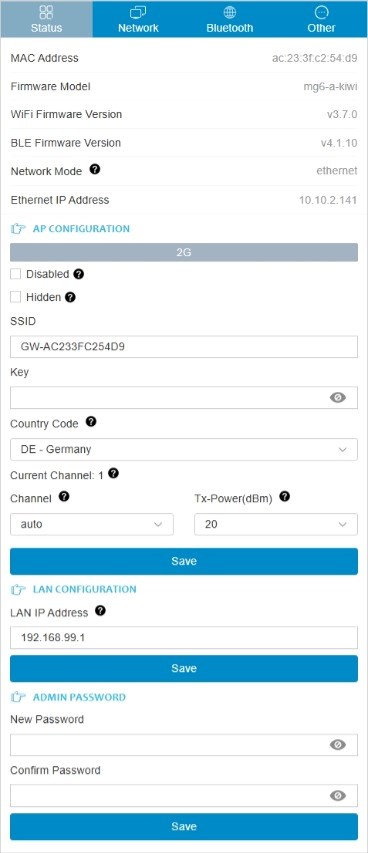
After a factory reset, the Minew MG6 gateway device creates an open soft access point using the integrated wifi interface. For the initial configuration, connect to this AP (SSID name is GW-xxxxxxxxxxxx) and open a webbrowser at the default http://192.168.99.1 address. Log on as admin with a blank password.
The main page will show the current configuration - adjust the network settings (on the network tab) as needed for your environment:
Configure MQTT output
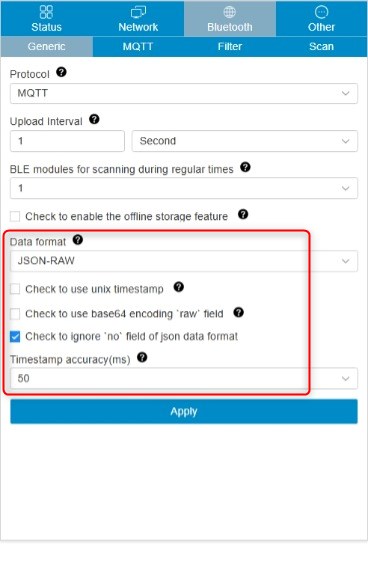
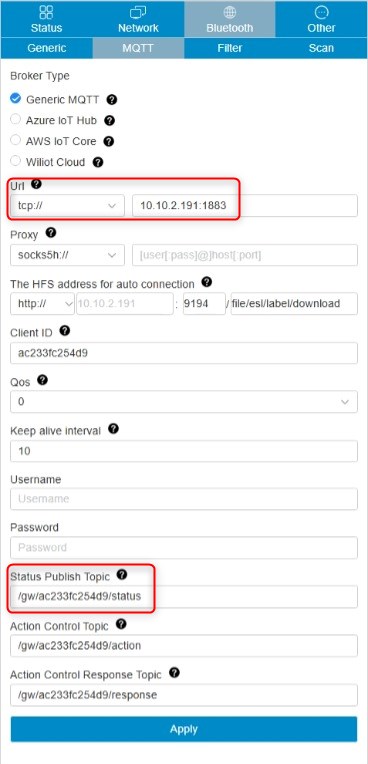
Configuring the MQTT output is son in the Bluetooth menu in the Generic and MQTT pages.
The Generic page defines the main parameters, such as the protocol type (set to MQTT), the timing and the data format (make sure to select the JSON-RAW format). For a working configuration, see the following screenshot:
The MQTT page defines where to send the data - here you configure the MQTT broker address and connection parameters as well as the topic, where BLE advertisments are published. See the following screenshot for a working configuration:
Configure BLE parameters
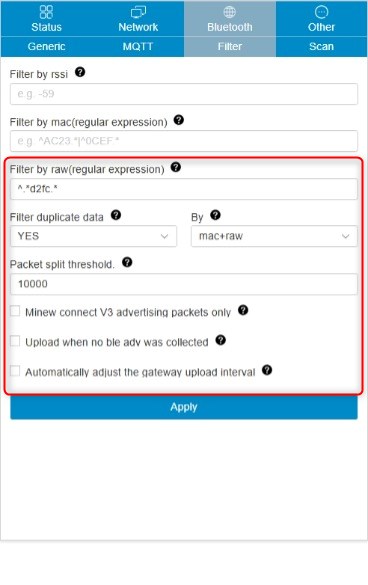
By default, the Gateway is preconfigured for the Minew devices and protocols. To use it with BTHome type devices (like the Shally BLU button), a few adjustments must be made to the default configuration. Also a filter should be set, so only the BTHome advertisments are received (to minimize network overhead).
The tabs Filter and Scan allow setting the relevant parameters.
The Filter page must use the regular expresson ^.*d2fc.* to filter the raw advertisment data for the BTHome device class. Also duplicate events should be discarded - here is a working configuration:
Note
For a more strict filter use the following:
^..........d2fc.*
This will filter all advertisment packets not having the BTHome class id in the bytes 6-7.
Finally, the Scan page defines the type of BLE scan the device is using - for BTHome, only passive scans are needed. Here is a working configuration:
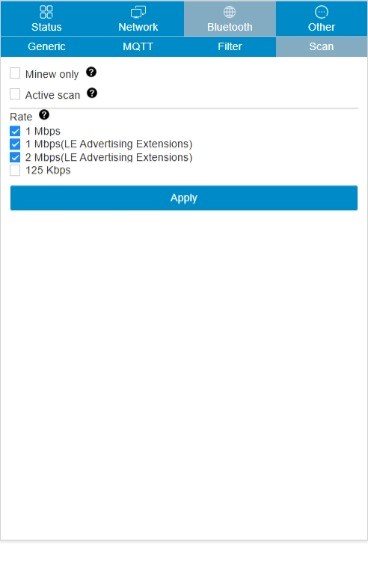
Test
For a simple test setup, Eclipse Mosquitto can be used for the MQTT Broker and MQTT-Explorer for a nice GUI client.
Setup Mosquitto
After downloading and installing Mosquitto, the following steps are needed to get it working:
- Edit mosquitto.conf (to enable listening on 0.0.0.0 instead of the default 127.0.0.0)
- Add a firewall rule to allow incoming TCP-Connections on TCP port 1883
- Run the mosquitto broker in verbose mode from the command line
The edits needed in mosquitto.conf are simple: add the following two lines to mosquitto.conf (preferrable in the listeners section):
# ============================================
# Listeners
# ============================================

allow_anonymous true
listener 1883
Then run mosquitto from the command line as follows:
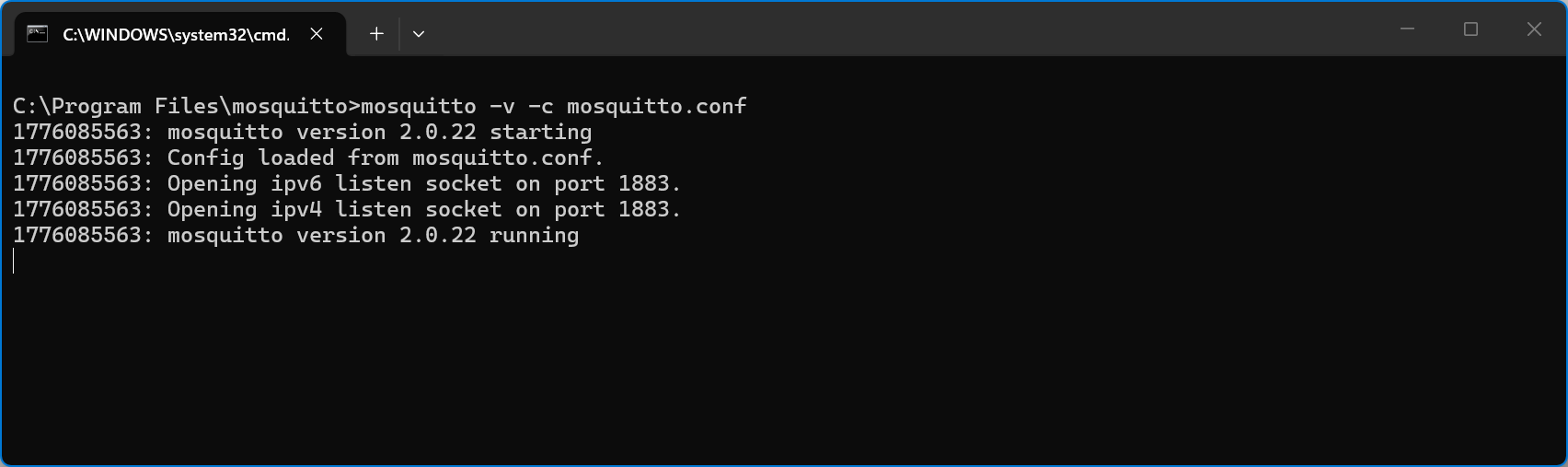
mosquitto.exe -v -c mosquitto.conf
This should then show something like the following:
Test using MQTT-Explorer
Run MQTT-Explorer and connect to the broker. When clicking a button on the BLE button, you should see messages appearing in /gw/
OGS configuration
To use the Minew-BLE Gateway with BTHome bluetooth buttons, add the button_minew_mg6 to the requires in your projects config.lua.
Note, that the button_minew_mg6.lua file depends on the mqtt.lua and the ble_helpers.lua modules, so make sure to copy them into your project folder, too.
Then set the parameters in your projects station.ini as follows:
[MINEW_MG6]
; Set ENABLED = 1 to enable the LUA Bluetooth LE interface
ENABLED=1
; Define MQTT broker URL
Broker=tcp://mybroker.mydomain.com:1883
; Define the base topic for listening to BLE status events. Use '+' for a single level wildcard, '#' for multiple levels (note: minew uses a leading /)
Topic=/gw/+/status
; Assign the MAC address of the BLE buttons to the function set and define which
; OK is single click, nok is double-click, sidepanel is long-click
3c2ef5ba05ca=OK,NOK,SidePanel
A93A65B6C67C=OK,NOK
CA05BAF52E3C=SidePanel
7CC6B6653AA9=ALL
; Define the MQTT client ID
ClientId=OGS_IDCode
; Additional (optional) MQTT params:
Debug=1
User=
Pass=
LastWillTopic=
LastWillData=
Then add a simple acknowledge button to your configuration and run a test. A single click on your BLE button will now send an "Ok button click" event to OGS.