Rexroth OPEXplus electronic torque wrench
The Rexroth OPEXplus electronic torque wrench family is a family of electronic torque wrenches with builtin WiFi communications. They use the OpenProtocol communication protocol to communicate with the heOGS software.

Installation and configuration
OGS project configuration
For generic information about how to configure OGS with OpenProtocol tools, see OpenProtocol documentation.
Tool registration and configuration
The OPEXplus tool is identified by specifying the tool type OPEX in the [OPENPROTO] section of station.ini.
A typical configuration of the [OPENPROTO] section looks like the following :
[OPENPROTO]
# Channel/Tool 1 parameters
CHANNEL_01=10.10.2.184
CHANNEL_01_PORT=4002
CHANNEL_01_TYPE=OPEX
; to enable curve transmission, set to 1:
CHANNEL_01_CURVE_REQUEST=1
CHANNEL_01_BARCODE_MID0051_REV=1
The typical parameters are (for more details about the possible parameters, see OpenProtocol documentation):
CHANNEL_<channel>: Define the IP address used to communicate with the tool.CHANNEL_<channel>_PORT: Define the TCP port number used for OpenProtocol(typically 4002).CHANNEL_<channel>_TYPE: Defines the OpenProtocol communication variant, must be set toOPEX.CHANNEL_<channel>_CURVE_REQUEST: Set to 1 to enable curve transmission, set to 0 to disable curve transmission. Set to 1, if you have tracebility output enabled and want to get the tightening graph included in the data output. Disable (set to zero), if you don't need it (for performance reasons).CHANNEL_<channel>_BARCODE_MID0051_REV: If set to a nonzero value, the MID0051 (ID-Code change) subscription is enabled. This can be used to read ID-Codes through a barcode scanner built into the tool (instead of using a seperate scanner).
Tool data output
Like other tools, the OPEXplus tools can use the OGS buit-in connectivity options to send out data and curves (Traceability data) to backend data management systems (like ToolsNet, CSP I-P.M., Sciemetric QualityWorX, QualityR, etc.).
To understand the system architecture and details on how to use data output in general, please see OGS Traceability. To setup Traceability for OPEXplus tools, enable Traceability and add the OPEXplus tools channel to the list of channels in the [FTP_CLIENT] section.
Here is a sample setup:
[FTP_CLIENT]
Enabled=1
;...
; (more settings)
;...
; Parameters for each channel:
CHANNEL_06_INFO={ "ChannelName": "WS010|AC_PF6000", "location name": ["Tool", "Line 2", "WS010", "default", "", "", ""] }
The following parameters are required for the OPEX tools, as the tool does not provide them through its interface:
ChannelName: Defines the station and channel name seperated by a pipe symbol (<station>|<channel>).location name: Defines the location name values to use. Note that this setting depends on the Sys3xxGateway settings for processing the tightening results. Make sure to add the relevant information (like data link name, building, line name, etc.), so the tool can be registered in the correct organizational unit.
Tool configuration
Firmware version
The officially required firmware version to use the OPEXplus tools with OGS is as follows (while the tool is switched off, press and hold the right arrow button until the display lights up, then enter a wrong password to get to the info screen):
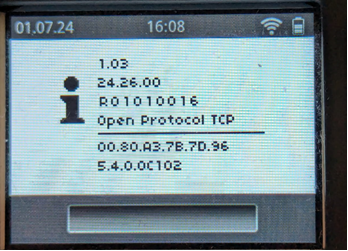
Things to check here:
- Controller firmware version >=
24.26.00 - Wifi module firmware version >=
5.4.0.C102 - Operation mode set to
OpenProtocol TCP(see theOPEXplusmanual on how to change operation mode using the USB cable)
To check the firmware parameters, open a webbrowser and go to the Status page of the OPEXplus tool (see the tools manual on how to connect it over wifi):
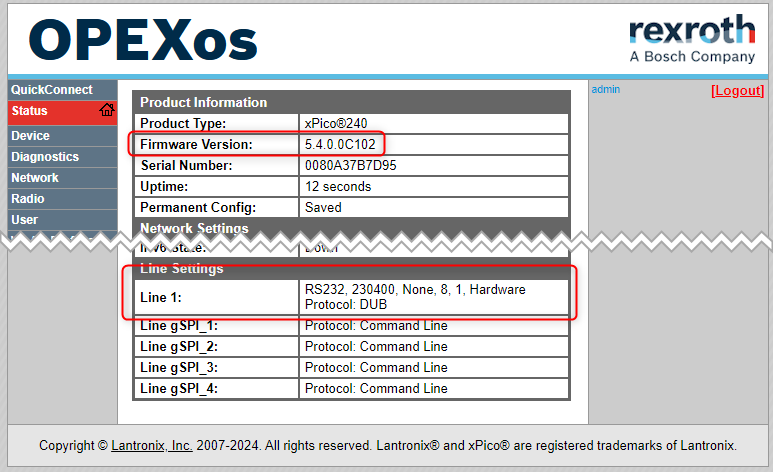
Things to check here:
- Wifi module firmware version >=
5.4.0.C102 - Line 1 settings: Protocol ==
DUB, line speed ==230400
Older firmware versions will likely work, but might show issues especially with curve transmission.
Tightening programs
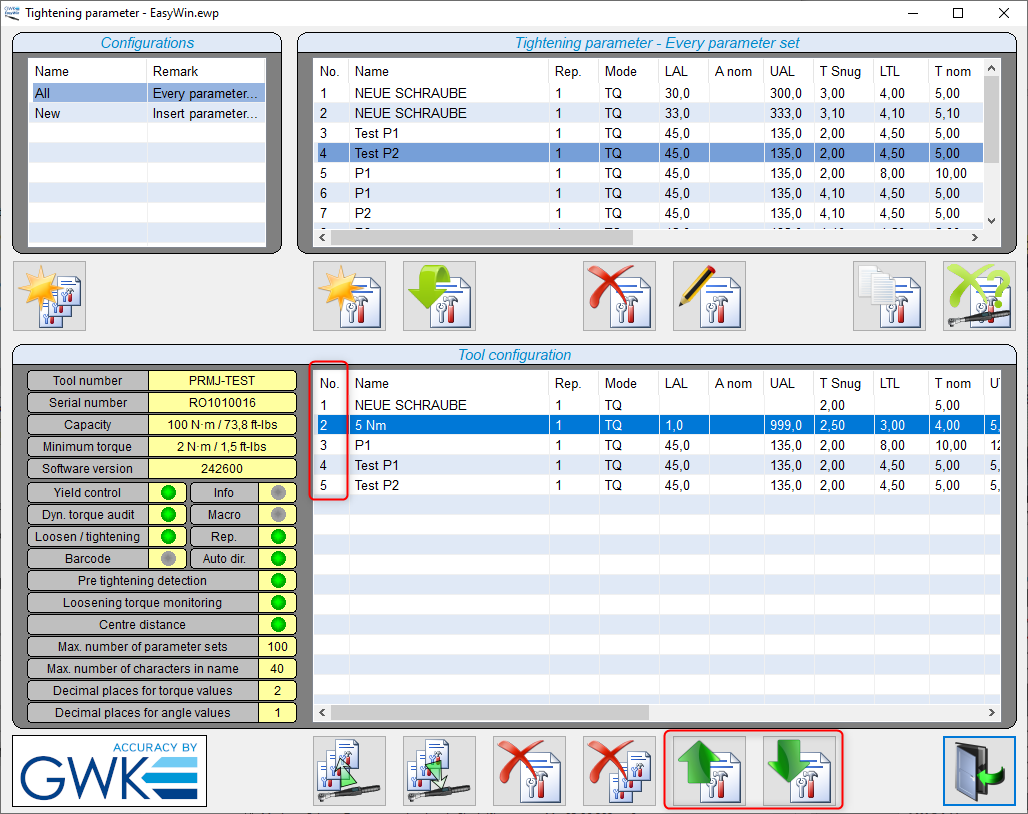
To upload and manage tightening programs, use the EasyWin software. The PSET number to select a tightening program is generated in EasyWin automatically besed on the inserting sequence (first column (labeled "No.") in the tool configuration list). To change the order, use the buttons with the green arrow on the bottom of the pane.
Switching the Operating Mode
Prerequisites
- Turn off the tool.
- Connect the tool to a PC using a USB cable.
- Open a terminal application such as TeraTerm or PuTTY Portable.
- Select the correct COM port for serial communication (see Device Manager).
- Set the baud rate to 115200.
- Open the connection.
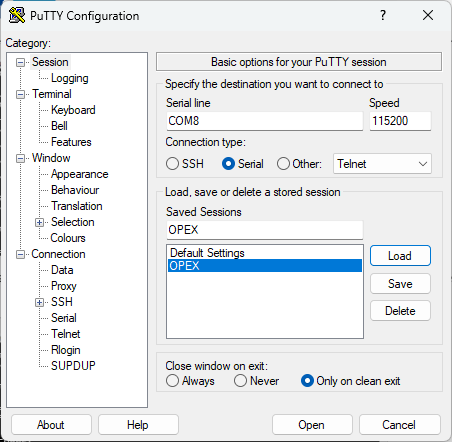
Example: PuTTY Portable
- Enter the COM port number.
- Set Speed (baud rate) to 115200.
- Click Open.
Access the Service Console
-
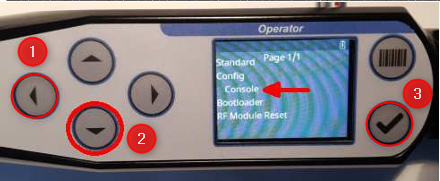
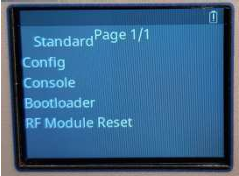
Press and hold the Left Arrow button on the tool until the following screen appears:
-
Use the arrow keys to select Console.
-
Press OK to confirm.
Log In to the Console
-
When prompted for a password, enter:
12345 -
Press Enter.
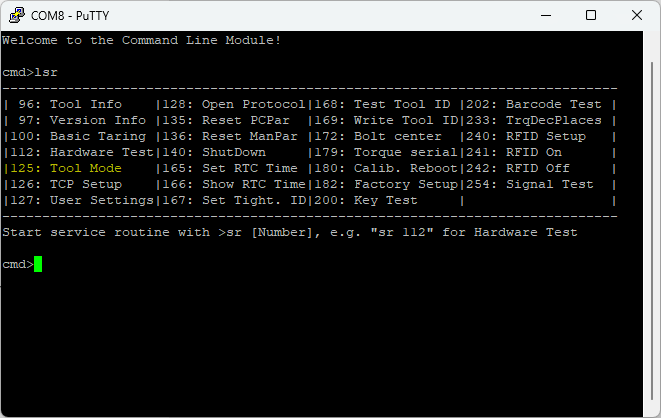
The terminal should display the following screen:

Display Available Service Routines
Enter the following command:
lsr
This displays the available service routines.
Change the Operating Mode
-
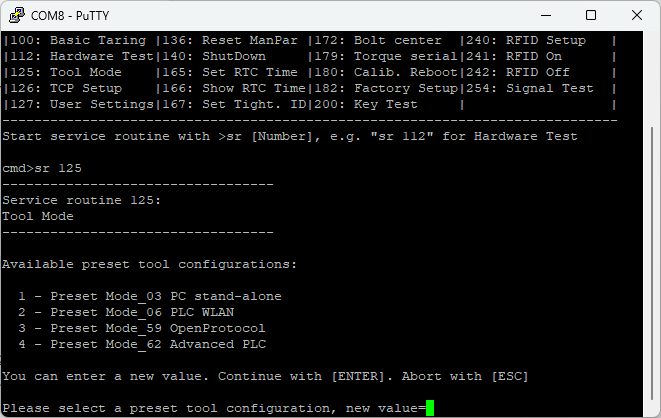
Start service routine 125:
sr 125 -
Select the required operating mode by providing the number (1, 2, 3 or 4)
Available modes:
- 3
- 6
- 59
- 62
Save and Exit
-
Turn off the tool using service routine 140:
sr 140 -
The operating mode change is now complete, and the tool will shut down.
-
Power on the tool. It will start using the newly selected operating mode.